Use this guide to enroll in Duo for the first time with your SUNY Plattsburgh NetID. Duo Mobile lets you verify campus sign-ins from your phone or tablet.
Already using Duo? Use Manage your Duo access to add or replace a device. If you currently use text-message codes, follow Switch from text-messages or passcodes to Duo Mobile.
Before you start
- Have your campus NetID and password ready. Find your NetID or set/reset your password if needed.
- Have an iPhone, Android phone, or supported tablet with internet access. For QR setup, use a computer for the campus sign-in and your phone or tablet for Duo Mobile.
- Install the current Duo Mobile app from the Apple App Store or Google Play. Installing it alone does not connect your campus account.
- If you cannot use a compatible device, contact ITS to arrange an available alternative.
1. Start your campus sign-in
Open MyPlattsburgh and sign in with your NetID and password. When the Duo welcome screen appears, select Get started and follow any introduction screens.
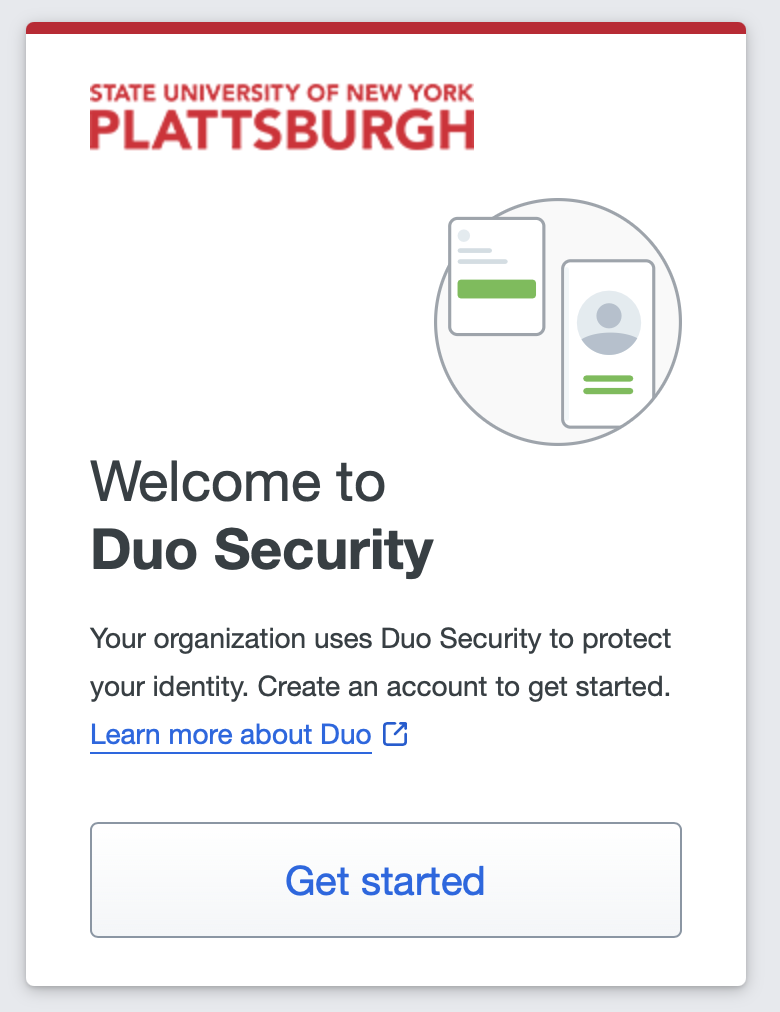
Campus first-time enrollment welcome screen.
If Duo instead asks you to verify with an existing method, your account is already enrolled. Use device management or contact ITS; do not delete your devices to restart enrollment.
2. Choose Duo Mobile
On First, add a device, select Duo Mobile to follow this guide. The other choices depend on your device and campus settings. A recommended Touch ID or other passkey option is a separate method and may also be useful.
SMS is going away: Text-message authentication is being phased out at SUNY Plattsburgh. Choose Duo Mobile for this setup instead of the separate Phone number — Get a text message option.

Actual campus screen captured October 8, 2026. The Phone number option may disappear as SMS enrollment is retired.
3. Connect the app
In the Duo Mobile setup, enter and confirm your mobile number. For a tablet without phone service, choose I have a tablet. Entering a phone number here is part of the Duo Mobile flow; it is different from choosing text-message authentication in step 2.
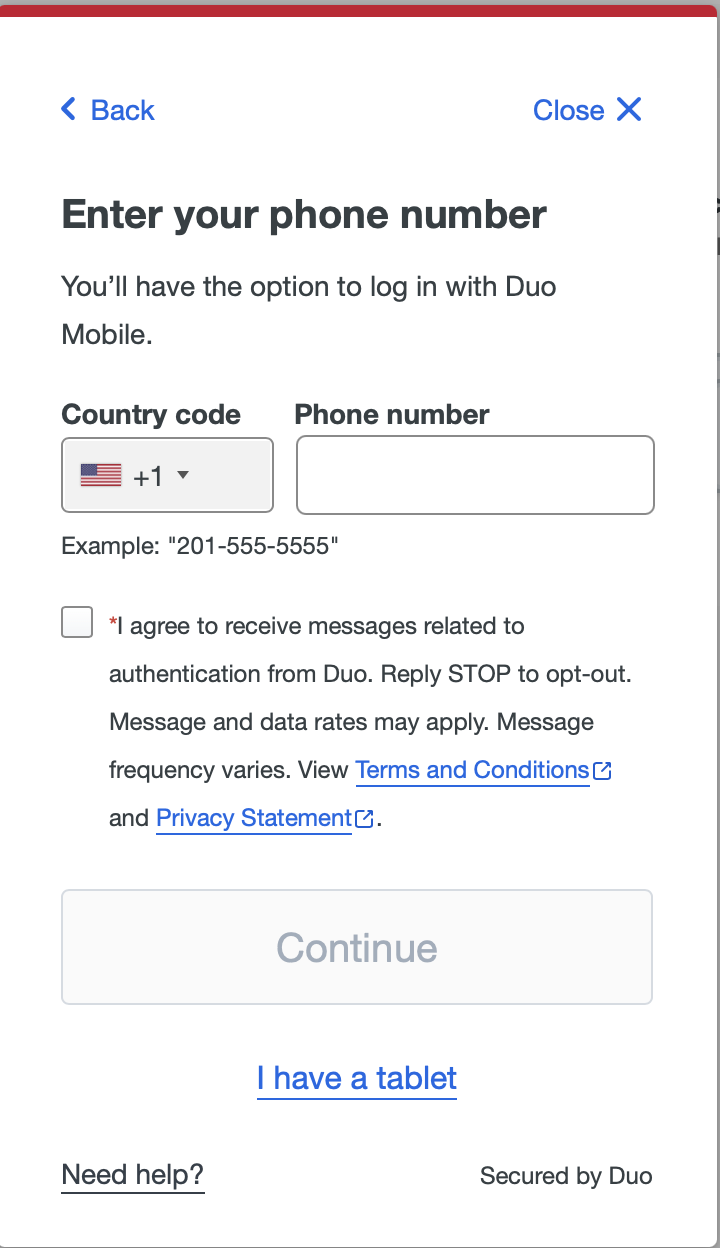
Phone or tablet selection during Duo Mobile setup.
Follow the download instructions. The campus phone-number flow may send an app-download link by text. If you see Download Duo Mobile, install the app and select Next. A download link alone does not activate your campus account.
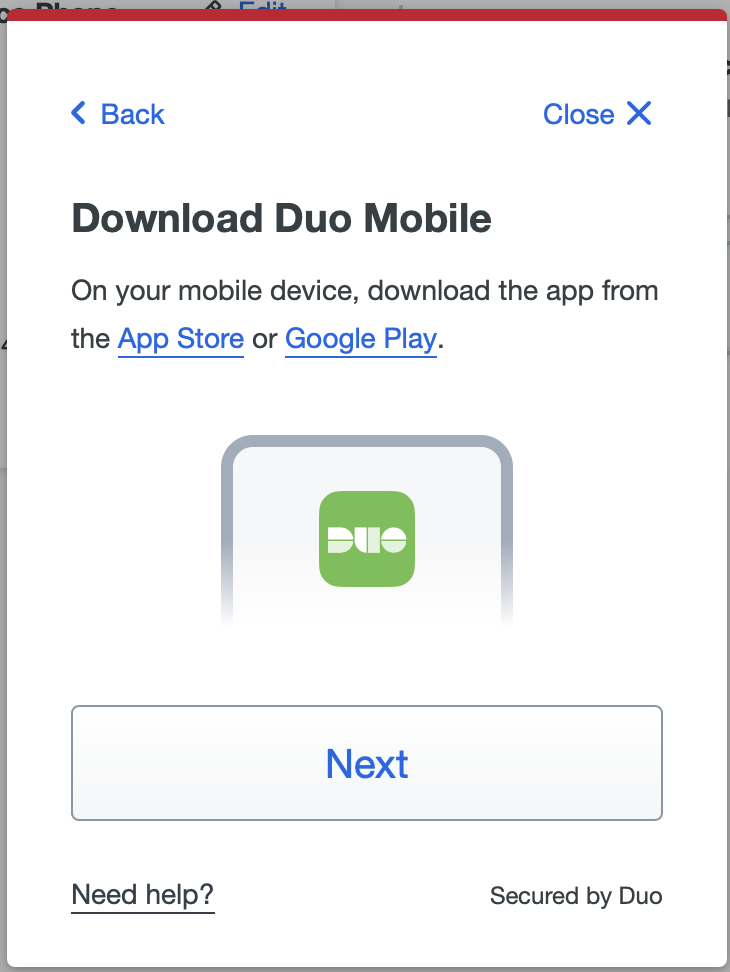
Install the app, then continue the enrollment session.
If a QR code appears, open Duo Mobile and select Add → Use QR code to scan the code in your own enrollment session. Follow any camera-permission prompt needed to scan it. Keep enrollment QR codes and activation links private.
On the same phone, use Open Duo Mobile when offered. If you cannot scan a code, use Get an activation link instead when available, or contact ITS. See Duo's illustrated enrollment guide for those alternate paths.
Continue until you see Added Duo Mobile, then choose Continue.

This confirms app activation. The next step tests a campus sign-in.
4. Finish enrollment and test a sign-in
Follow the remaining prompts to finish setup. If offered, add another available verification method for backup. A second enrolled device or passkey is different from a backup code; self-service backup codes are restricted to a small ITS-approved group and are not a general enrollment option. See backup-code eligibility and current service status.
Continue to your campus application. When Verified Push displays a code in the browser, open the request in Duo Mobile, confirm that you started it, enter the browser's code, and tap Verify. Follow any additional device-verification prompts. Screens can differ by device and campus policy.
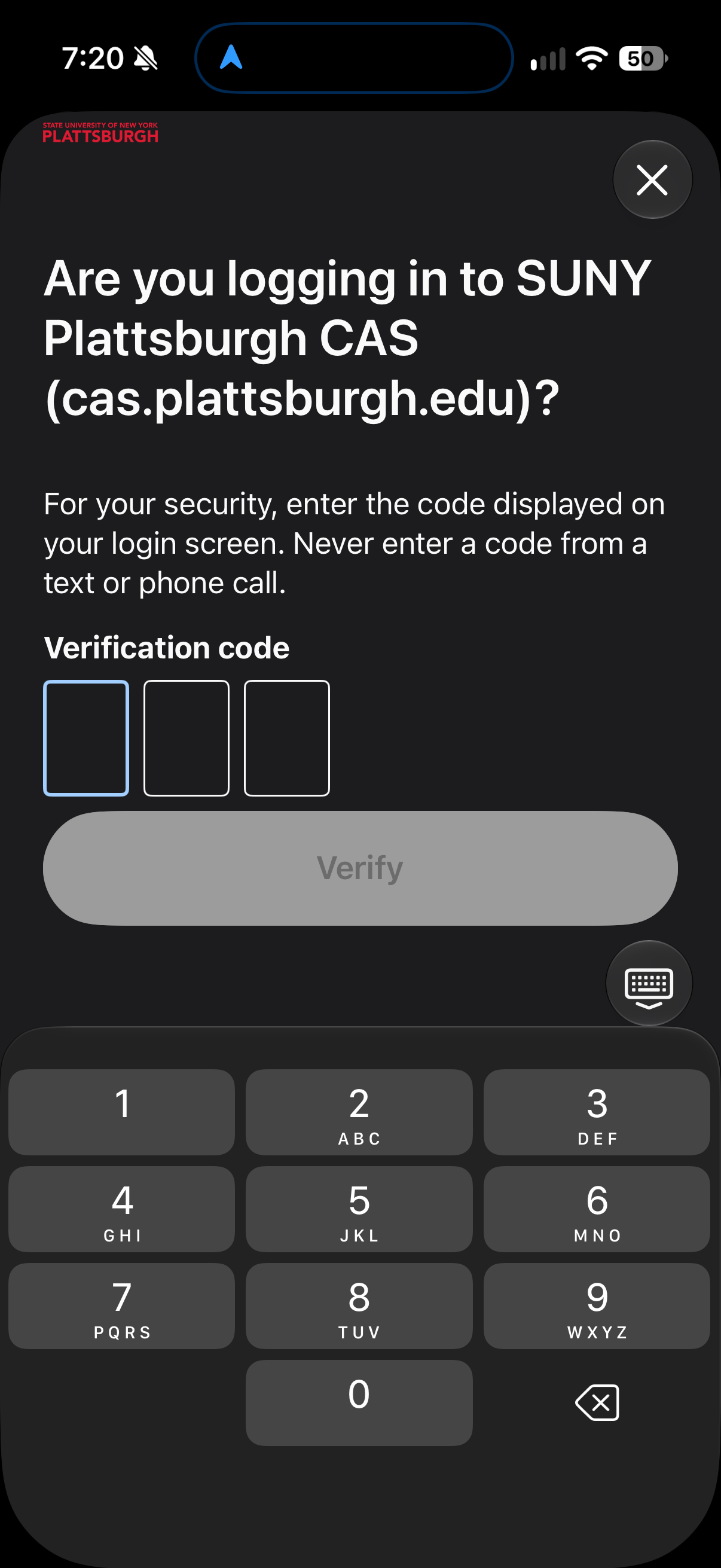
Enter the code from your own login screen, never one supplied by someone in a text or phone call.
After Duo Mobile shows Approved, return to your browser and confirm that the campus application opens. Only approve sign-ins you initiated. For an unexpected request, choose I'm not logging in when offered and contact ITS.
After setup
- Manage your Duo access to add or replace a device. You must verify your identity using an offered method.
- Duo Push needs Wi-Fi or cellular internet on your phone. App-generated passcodes can be created offline, but acceptance depends on campus policy and the service.
- If asked whether this is your device, select the personal-device answer only if you are its sole user. Choose the shared-device answer on a public or shared computer.
- If you lose access to all verification methods, contact ITS. Reinstalling Duo Mobile does not by itself reconnect your campus account.
Help and official instructions
ITS Helpdesk: 518-564-4433, helpdesk@plattsburgh.edu, Feinberg 106.
Screenshots show the Plattsburgh setup captured October 8, 2026. The welcome and method picker show first-time enrollment; later app-setup illustrations were captured while adding Duo Mobile to a test account and show the shared setup steps.