Body
If you currently receive Duo sign-in codes by text message, you can connect Duo Mobile to your SUNY Plattsburgh account and use Duo Push where campus settings allow it. When Verified Push is required, Duo adds a verification step to help prevent accidental approvals. Supported passkeys provide phishing-resistant authentication.
Installing Duo Mobile does not automatically connect your campus account. Complete the activation process before relying on the app to sign in.
New to Duo? Use Set up Duo Mobile for the first time.
Before you start
- Install or update Duo Mobile from the Apple App Store or Google Play on your phone.
- For the QR-code setup shown in Duo's guide, use a computer for the campus sign-in and your phone for Duo Mobile.
- Have an existing working verification method available. A method allowed for ordinary login may not be offered for device management.
- If you cannot complete the verification offered by Duo, contact the ITS Helpdesk: 518-564-4433, helpdesk@plattsburgh.edu, Feinberg 106. Do not remove your working device to try to start enrollment again.
1. Open device management
Open Manage your Duo access, select Open Duo device management, and complete NetID sign-in and the verification Duo offers. The MyPlattsburgh route below is also available.
- Open MyPlattsburgh and begin signing in with your NetID and password.
- At the Duo prompt, select Other options. Your first screen may offer Touch ID, Duo Push, a text-message passcode, or another method already associated with your account.
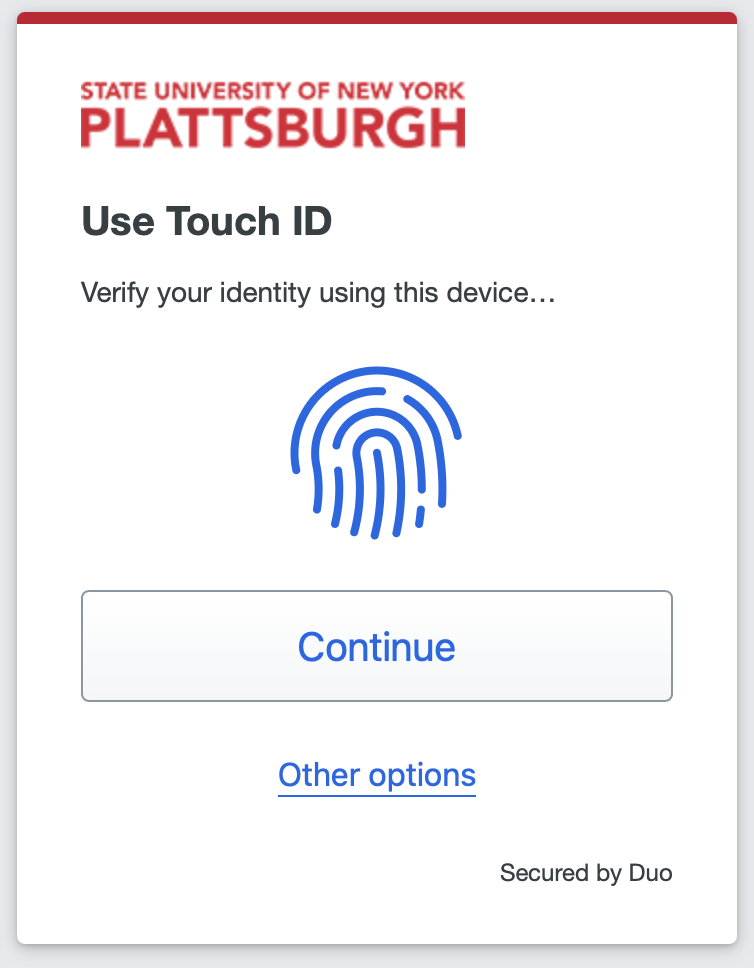
Figure 1. Select Other options to view additional choices. This Plattsburgh screenshot shows an account with Touch ID already enrolled; you do not need to enroll Touch ID to follow this article.
- Select Manage devices from the list. If the choice is missing, contact ITS.

Figure 2. Choose Manage devices. This is an existing campus illustration; the methods and labels shown in your session may differ.
- At Verify your identity before managing devices, use one of the methods offered on that screen. Do not assume a text-message or app passcode will be available just because it worked for an ordinary login.
Read Duo's device-management instructions.
2. Connect Duo Mobile to your campus account
After verification, Duo displays your devices.
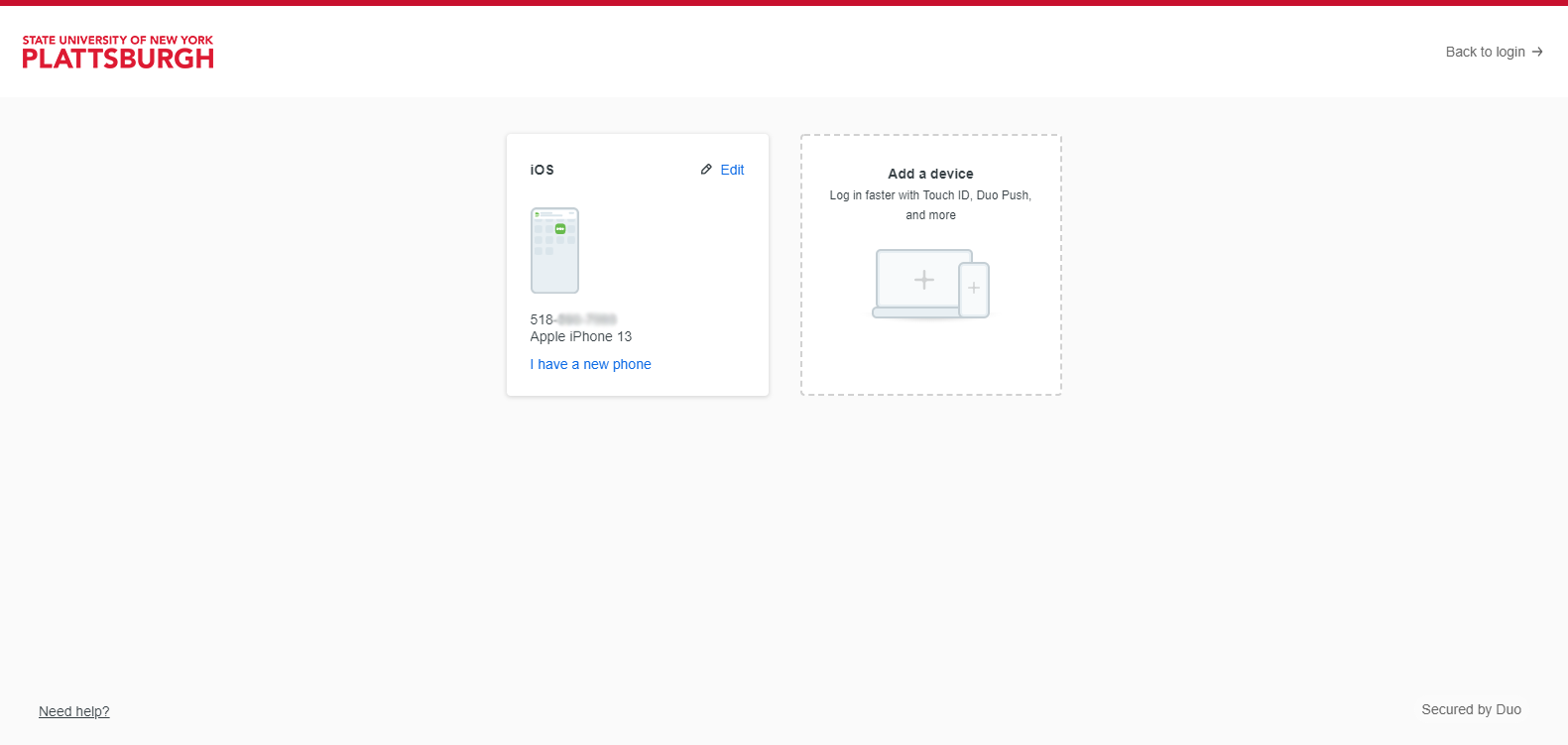
Figure 3. Review your existing devices. The pictured phone already has Duo Mobile; it is not an example of a phone enrolled only for text messages.
If you are adding a different phone: choose Add a device, then Duo Mobile, and follow the prompts.

Figure 4. Choose Duo Mobile to connect the app. Adding a Phone number for text messages is a different enrollment choice.
If your current phone is already registered for text messages: follow any available Duo Mobile activation prompts for that phone. If you do not see an activation option or Duo reports that the phone is already registered, contact ITS to help connect the app. Keep your existing working method in place. The separate “I have a new phone” reactivation process is intended for an existing Duo Mobile setup; it should not be assumed to be the correct path for every SMS-only phone.
Follow the setup path shown for your device
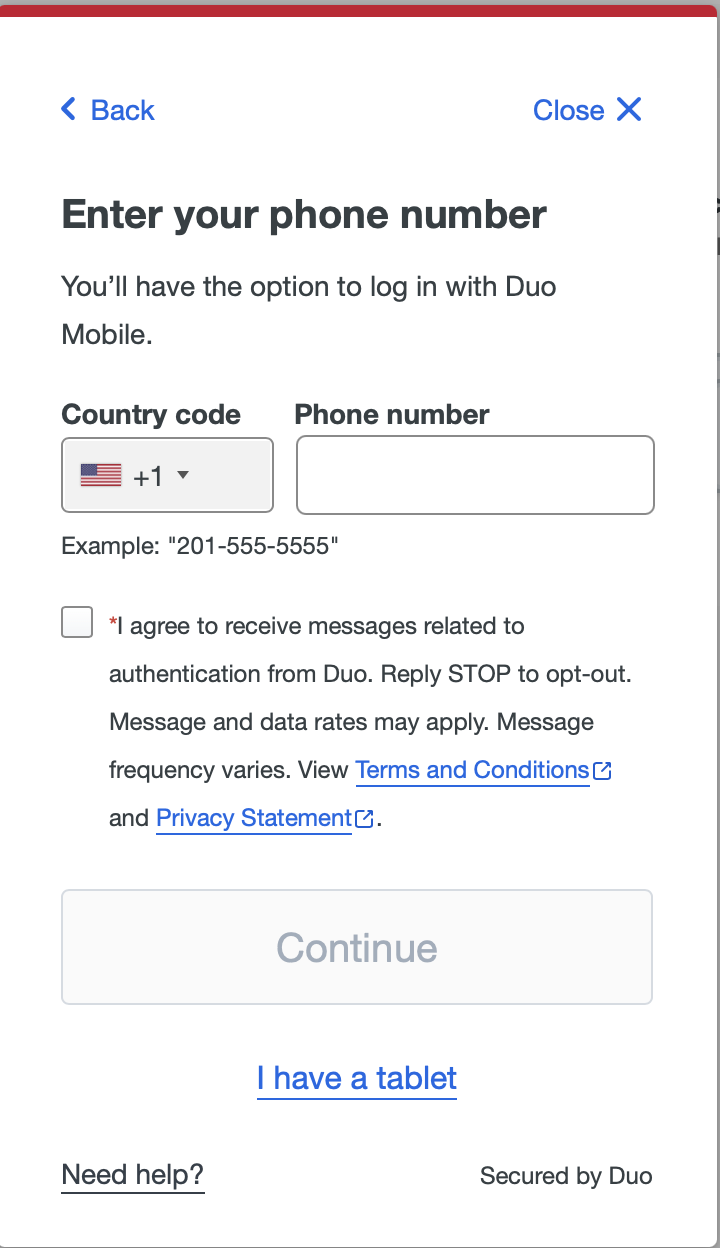
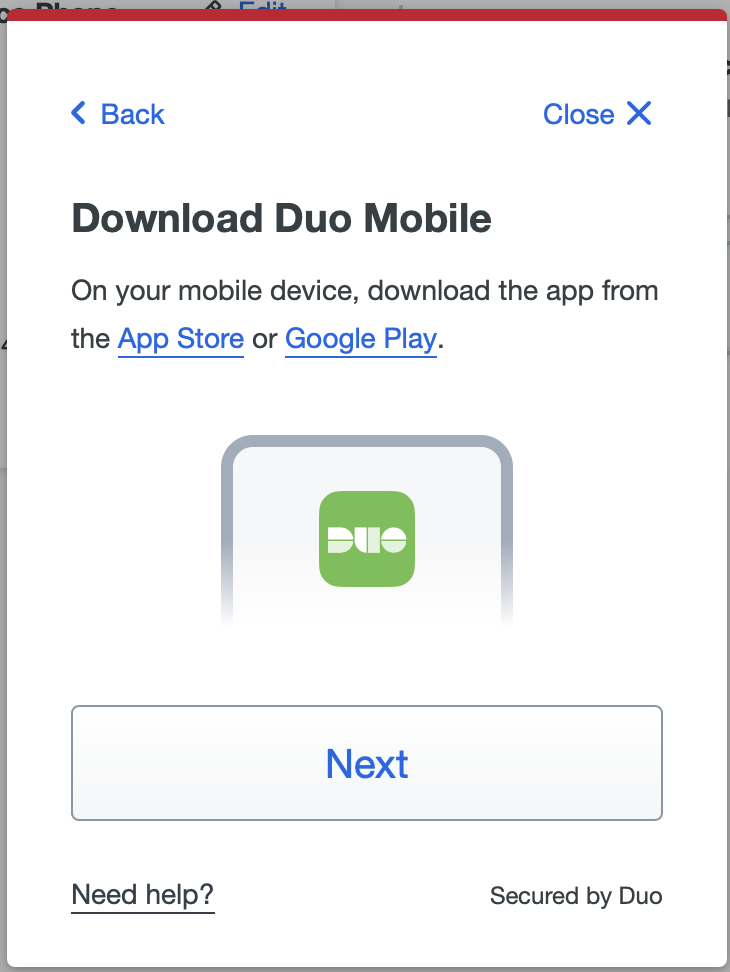
On Enter your phone number, enter and confirm your mobile number, or choose I have a tablet when setting up a tablet without phone service. Follow the download and activation instructions shown for your device. You may receive a link by text or see a QR code to scan. Installing the app alone does not finish activation.
Download Duo Mobile from the App Store or Google Play, then choose Next. Installing the app or opening a download link alone does not connect your campus account.
When setup displays an enrollment QR code, open Duo Mobile, choose Add → Use QR code, and scan the code displayed in your own setup session. Keep the QR code and any activation link private. The screen also offers Get an activation link instead; follow that flow if you cannot scan the code.
Continue until you see Added Duo Mobile, then choose Continue.

This confirms app activation. The sign-in test below confirms that your new method works with the campus application and its policy.
Use Duo's illustrated Duo Mobile enrollment instructions for the phone-side steps. If you replaced a phone that already used Duo Mobile, see Duo's reactivation instructions.
3. Test a sign-in with Verified Push
Start a new campus sign-in. If needed, use Other options → Duo Push. When a verification code appears in the browser, open the request in Duo Mobile, review it, enter the browser's code, and tap Verify. Follow any additional device-verification instructions.
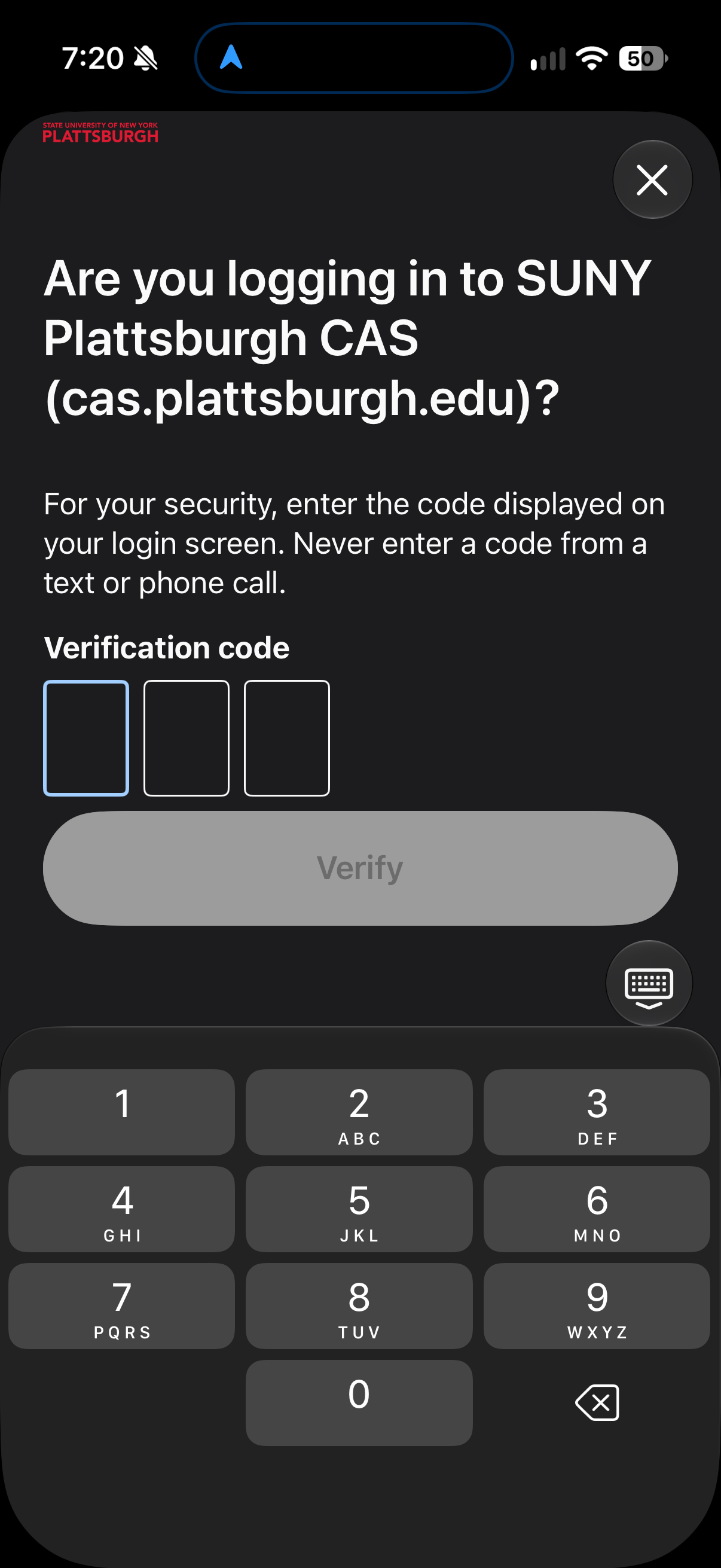
Enter the code from the campus login screen into Duo Mobile, then tap Verify. Do not enter a code supplied in a text message or phone call for this Verified Push request.

The app displays Approved. Return to your browser to continue signing in.
The code shown in the browser is for verifying that push request. It is different from a passcode generated inside Duo Mobile. Phone-based sign-ins and enabled automatic verification features can look different. Verified Push is controlled by campus policy; there is no separate switch in Duo Mobile that enables it for your account.
Only approve requests you started. Deny unexpected requests and contact ITS. Never share a sign-in code with someone who calls, texts, or emails you.
See Duo's Verified Push guide.
Common questions
Do I need cellular service?
Duo Push requires an internet connection on the phone, through Wi-Fi or cellular data. Duo Mobile can generate passcodes offline, but whether a passcode is accepted depends on campus policy and the sign-in being attempted. Arrange a campus-approved backup before travel.
Why does Duo ask whether this is my device?
You may see a device-ownership question after verification. Choose Yes, this is my device only when you are the sole user of the device. On a shared or public computer, choose No, other people use this device. Do not assume this removes future verification requirements.

Figure 5. Answer for the device you are using to sign in. Future verification prompts depend on campus settings.
What if Duo says my account is disabled?
Contact ITS. The message requires account or application-access investigation; installing the app again does not by itself resolve it. Do not assume this is a temporary lockout or repeatedly retry enrollment.
Can I use a passkey instead?
Supported passkeys provide phishing-resistant authentication. Enrollment choices depend on your device and campus settings. A biometric lock on Duo Mobile is not the same as enrolling a passkey. Ask ITS which options are available for your account.
Can I generate backup codes?
Self-service backup codes are restricted to a small ITS-approved group. See eligibility and current service status. Contact ITS if you cannot use any offered verification method; do not assume the backup-code page is available to every account.
Watch the overview
A Safer Sign-In: Upgrade Your Duo Authentication — open in YuJa
English captions are available in the video player. You can also follow the written steps above.
Need assistance?
Call 518-564-4433, email helpdesk@plattsburgh.edu, or visit Feinberg 106.